Conversations
Learn how to view, search, filter, and export your chatbot's conversation history and leads.
Conversations is where you review every interaction visitors have had with your chatbot. You can read full message threads, filter by channel, search for specific visitors, export data, and manage leads -- all in one place.
Where to Find Conversations
- Log into your AI Bot Kit dashboard.
- Open any agent from My agents.
- Click Conversations (speech-bubble icon) at the top of the left sidebar.
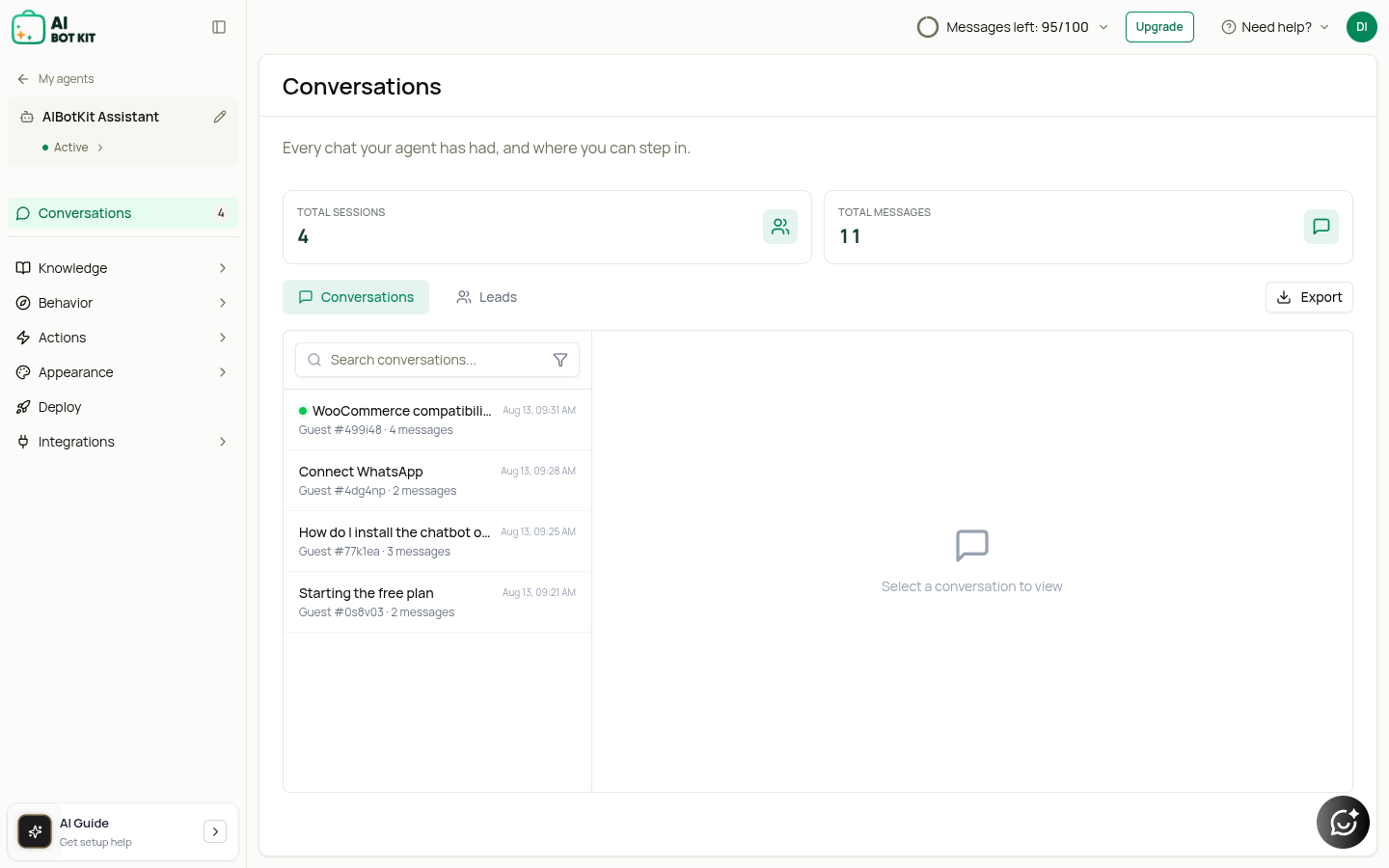
Conversations sits at the top of the sidebar, above the Knowledge and Behavior groups — it's the screen you'll open most often. The number beside it is the total session count for that agent.
At the top of the screen you'll see Total Sessions and Total Messages for the agent, then two sub-tabs: Conversations and Leads.
Conversations Tab
This is the default view. It shows a list of all visitor conversations.
Conversation List
Each row shows:
| Element | Meaning |
|---|---|
| Green dot | Live -- last message arrived less than 2 minutes ago |
| Channel icon | Where the conversation happened (Website, WhatsApp, Telegram, etc.) |
| Visitor name | The name they entered in the lead form, or "Guest" with an ID |
| "Human" chip | AI is turned off -- you're in live chat / human takeover mode |
| "Quote" chip | The visitor submitted a quotation request |
| Message count | Total messages in the conversation |
| Timestamp | When the last message was sent |
| Green dot (right) | Unread -- new messages since you last opened this thread |
Search Conversations
Type a visitor's name, email, or message content into the search box. Results update automatically after you stop typing.
Filter by Channel
Click the funnel icon inside the search box to filter conversations:
| Filter | Shows |
|---|---|
| All Conversations | Every conversation across all channels |
| Human Takeover | Only conversations where AI is turned off |
| Only WhatsApp conversations | |
| Only Instagram DM conversations | |
| Telegram | Only Telegram conversations |
| Discord | Only Discord conversations |
| Google Chat | Only Google Chat conversations |
| Slack | Only Slack conversations |
Only channels that are actually connected to your chatbot appear in the filter menu.
Reading a Conversation
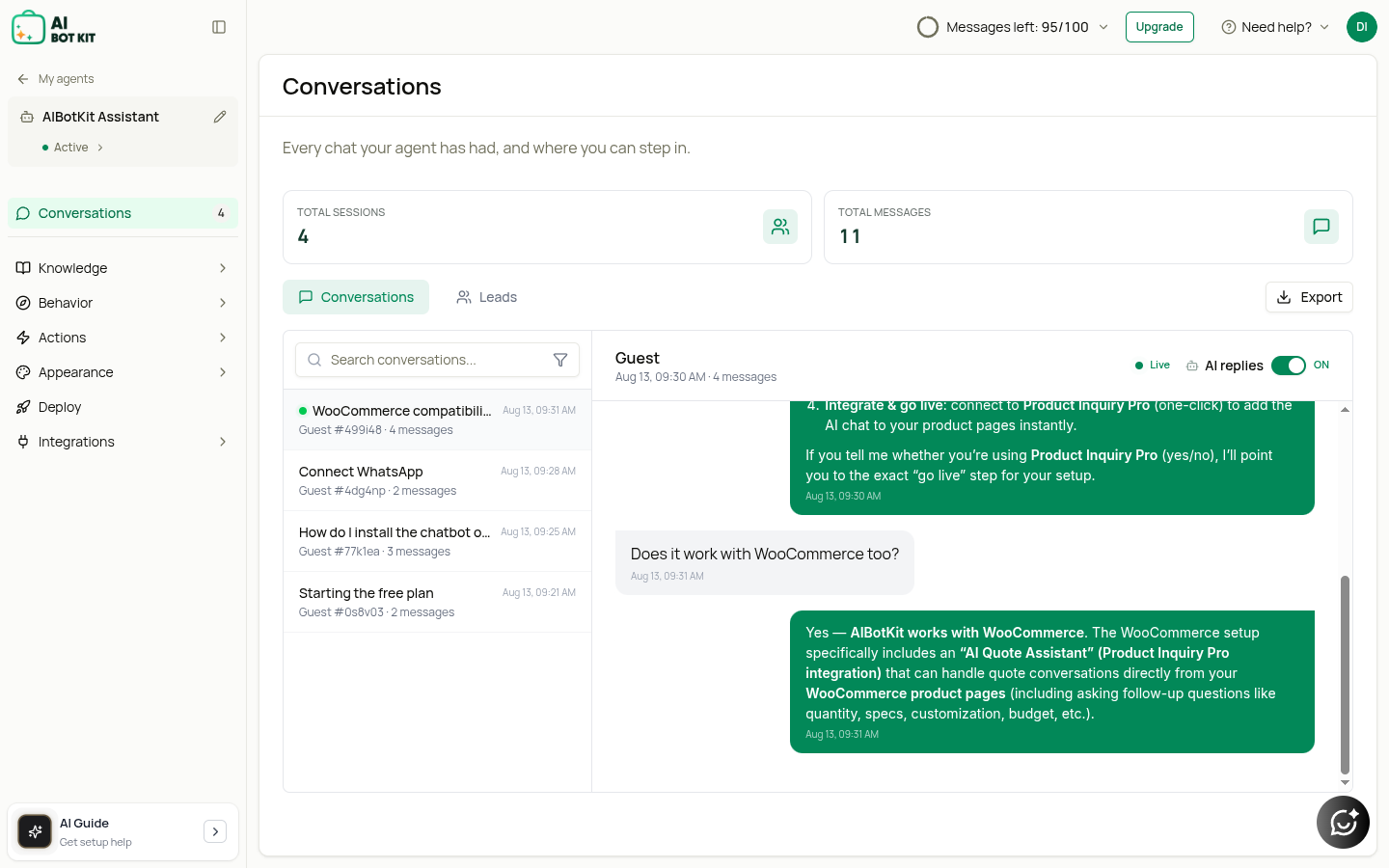
Click any conversation row to open the full message thread. On desktop, it opens in the right panel. On mobile, it opens a detail view with a back button.
The conversation viewer shows:
- Full chat history with timestamps
- Visitor's lead form details (if submitted)
- AI replies toggle (top right of the thread) -- turn AI on/off for this session
- Reply box -- type and send messages as the bot owner (when AI is off)
Unread conversations are marked with a green dot. Opening a conversation automatically marks it as read.
Export Conversations
Click the Export button to download all conversations as an Excel file (.xlsx). The export includes visitor details, messages, timestamps, and channel information.
Pagination
If you have many conversations, use the Previous / Next buttons at the bottom of the list to navigate pages.
Leads Tab
Click the Leads tab (users icon) to see everyone who submitted your chatbot's contact form.
Leads Table
| Column | Description |
|---|---|
| Name | Visitor's name from the lead form |
| Visitor's email address | |
| Phone | Visitor's phone number (if provided) |
| Date | When the lead was submitted |
| Chat | Link to view the full conversation |
Export Leads
Click Export Leads to download all leads as an Excel file (.xlsx).
Plan Requirement: The Leads tab is available on every plan — Free Full Access, Essential, Business and Enterprise. Older free-tier accounts see a preview with an upgrade prompt.
Tips
- Check for the green live dot. If a visitor is actively chatting, you'll see it immediately.
- Use Human Takeover filter. Quickly find conversations where someone on your team took over.
- Search by phone number. For WhatsApp conversations, search the phone number to find a specific visitor.
- Export regularly. Back up conversations and leads weekly for your records.
- Enable contact form. If the Leads tab is empty, make sure your contact form is turned on in ACTIONS → Lead Capture.
Troubleshooting
I don't see any conversations
- Make sure your chatbot is published and embedded on a website or connected to a channel.
- New conversations appear in real time -- refresh the page if needed.
The Leads tab says "Upgrade to view"
- Your account is on an older free tier. Choose a plan (Essential, Business or Enterprise) in Settings → Plans & Billing to access leads.
I can't find a specific conversation
- Use the search box to filter by visitor name or message content.
- Check the channel filter -- the conversation might be on WhatsApp or another channel.
Related Topics
- Live Chat & Human Takeover -- Take over conversations in real time
- APPEARANCE: Interface -- Configure greeting and fallback messages
- ACTIONS -- Set up lead capture, email notifications, and webhooks
- Dashboard Overview -- Account-wide numbers across all agents