Security Settings
Learn how to use AI Bot Kit's security features to keep your chatbot safe and control who can interact with it.
AI Bot Kit gives you simple but powerful security controls to protect your chatbot from unwanted interactions. You can block specific words from being processed and prevent entire IP addresses from accessing your bot.
Plan Requirement: Security settings are available on every plan — Free Full Access, Essential, Business and Enterprise. Accounts on the older Basic plan see a locked card with an upgrade prompt.
Where to Find Security Settings
- Log into your AI Bot Kit dashboard.
- In the left sidebar, click Security.
- You'll see two cards: Banned Words and Banned IPs.
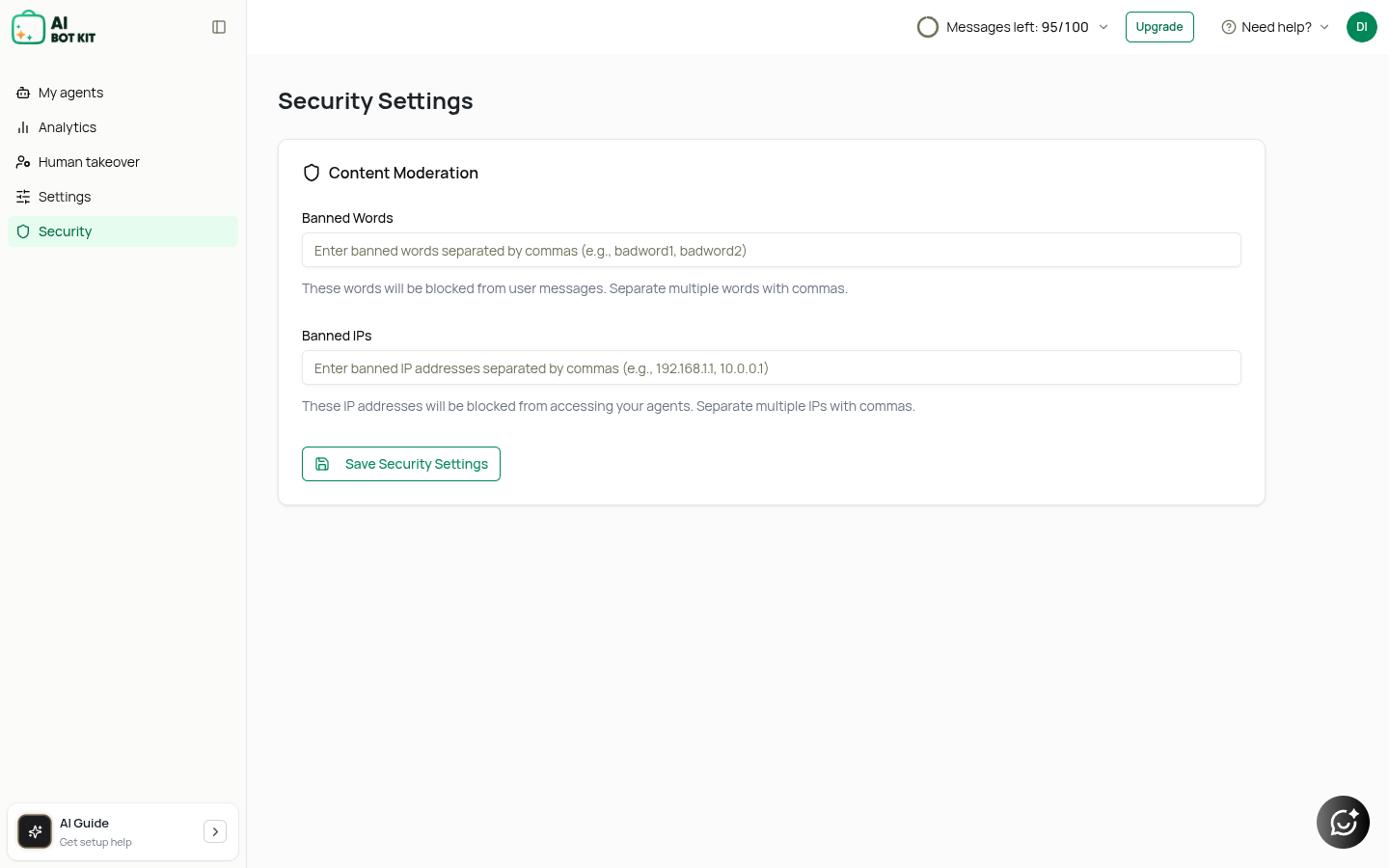
Banned Words
Use Banned Words to prevent your chatbot from responding to messages that contain specific terms. This is useful for:
- Blocking profanity or inappropriate language
- Preventing discussions on topics outside your bot's scope
- Maintaining brand safety
How to Add Banned Words
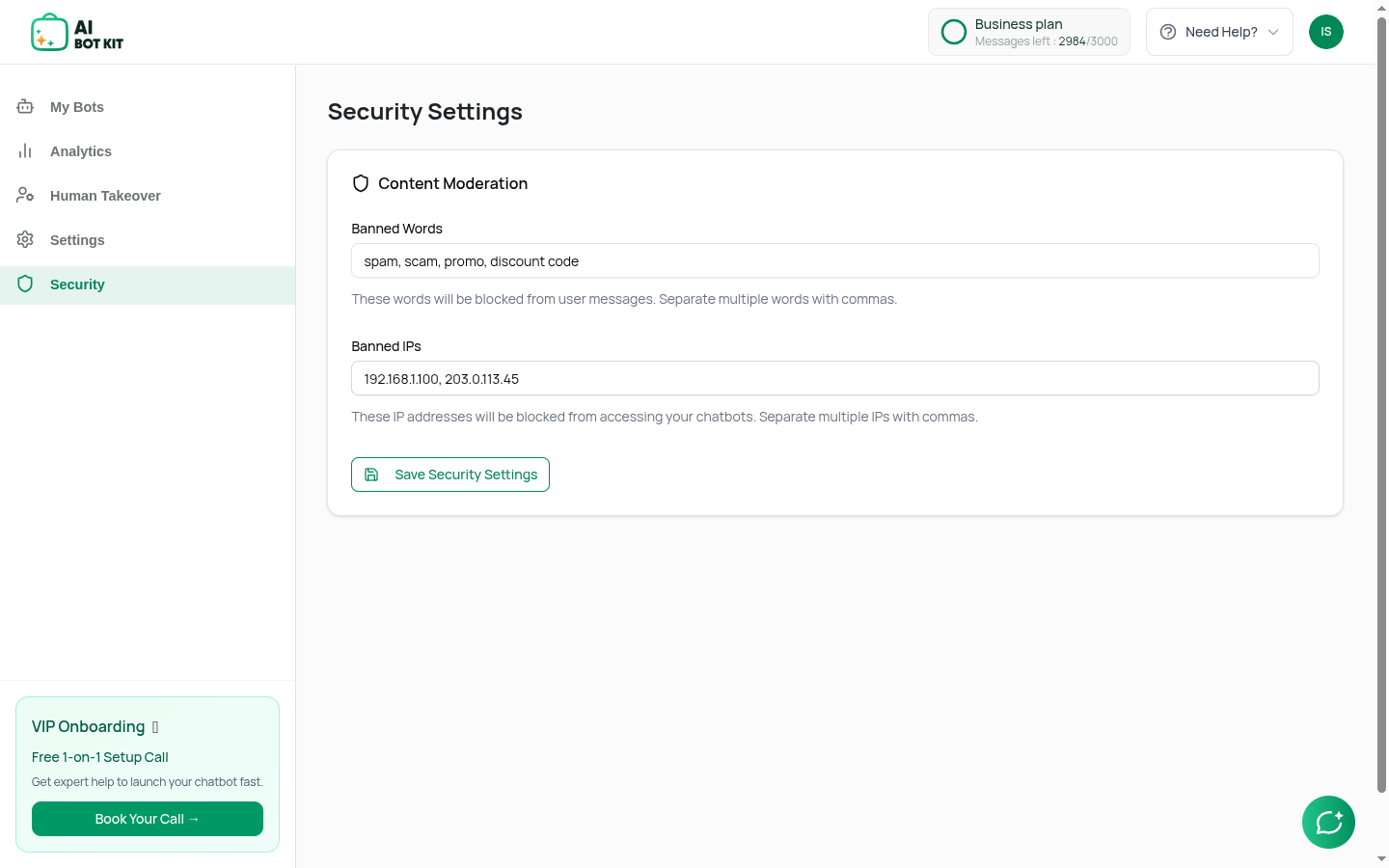
- In the Banned Words card, click into the text field.
- Type the words you want to block, separated by commas.
- Example:
spam, scam, promo, discount code
- Example:
- Click Save.
What Happens When a Banned Word Is Used
When a visitor sends a message containing any banned word, your chatbot will not process the message. Instead, it replies with your configured fallback message (set in Appearance → Interface):
"This message contains banned content"
The conversation is still saved in your dashboard so you can review it, but no AI response is generated and no message credits are used.
Tips for Banned Words
- Be specific. Banning generic words like "free" might block legitimate questions. Use phrases like "free money" or "get rich quick" instead.
- Case-insensitive. Banned words work regardless of capitalization (
Spamandspamare treated the same). - Partial matches count. If you ban "scam", messages containing "scammer" or "scammed" will also be blocked.
- Review regularly. Check your conversations periodically to see if banned words are triggering too often or missing new unwanted terms.
Banned IPs
Use Banned IPs to completely block specific IP addresses from interacting with your chatbot. This is useful when:
- Someone is spamming your bot
- You want to restrict access to specific geographic regions
- You've identified malicious traffic
How to Add Banned IPs
- In the Banned IPs card, click into the text field.
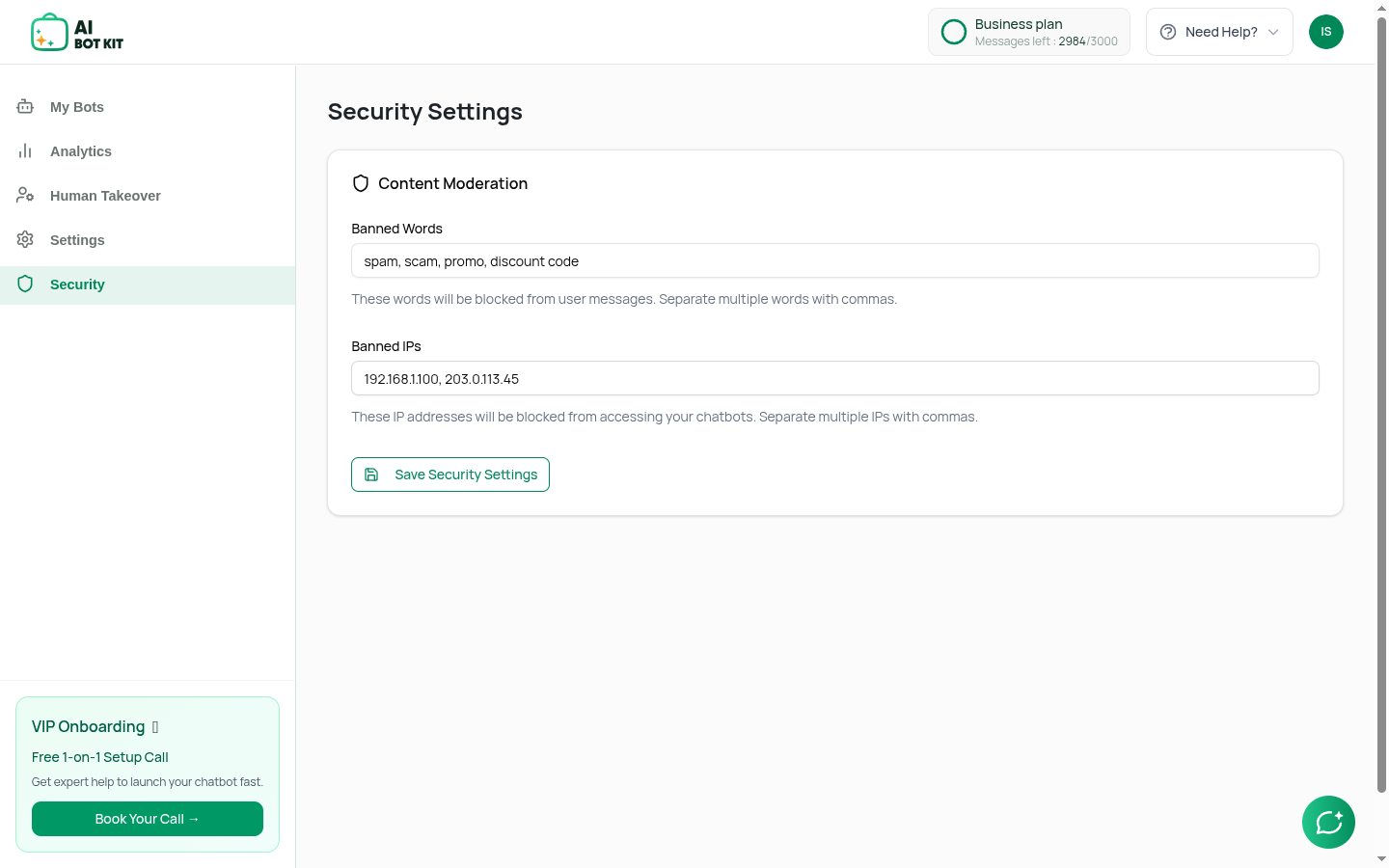
- Type the IP addresses you want to block, separated by commas.
- Example:
192.168.1.100, 203.0.113.45
- Example:
- Click Save.
What Happens When a Banned IP Visits
Visitors from a banned IP address will see an error message instead of your chatbot:
"This IP is not allowed."
The widget will not load, and no conversations or leads are recorded for that IP.
How to Find an IP Address
Visitor IP addresses are not currently shown in the dashboard. They're recorded against each conversation, but there's no screen that displays them, so you can't copy an IP straight out of the Conversations view.
If someone is misusing your chatbot and you need their IP address, contact support with the approximate date and time of the conversation and we can look it up for you.
If the abuse is coming through your own website, your web host's or CDN's access logs (for example Cloudflare's traffic log) will also show the visitor's IP for that time window.
Tips for Banned IPs
- Use sparingly. IP bans affect everyone on that network (e.g., an entire office building might share one public IP).
- Dynamic IPs change. Most home internet connections have dynamic IPs that change over time. A banned IP might eventually be assigned to a legitimate user.
- VPNs bypass bans. Determined users can use VPNs to get a different IP address. Banned IPs are a first line of defense, not a complete solution.
- Test before banning. Make sure you have the correct IP — banning your own IP will lock you out of your own chatbot.
Security Best Practices
| Practice | Why It Helps |
|---|---|
| Start with a small banned word list | Too many banned words can frustrate legitimate users |
| Monitor conversations weekly | Spot new spam patterns early |
| Combine with human takeover | For borderline cases, take over instead of blocking |
| Keep banned IP list short | Focus on repeat offenders, not one-time spam |
| Set a clear fallback message | Let users know why their message was blocked |
Troubleshooting
I added a banned word but it's not working
- Make sure you clicked Save after editing the list.
- Remember that banned words only apply to new messages — existing conversations are not retroactively filtered.
- Check that the word isn't being modified by the user (e.g., "sc@m" instead of "scam").
I accidentally banned my own IP
- Log into your dashboard from a different network (e.g., mobile data instead of Wi-Fi).
- Go to Security and remove your IP from the banned list.
The security section is locked
- Your account is on the older Basic plan, which does not include Security. Move to Essential, Business or Enterprise in Settings → Plans & Billing to unlock it.
Related Topics
- APPEARANCE: Interface — Configure your fallback message
- Live Chat & Human Takeover — Take over conversations manually
- Conversation History — Review visitor interactions