DEPLOY
Deploy is where you put your agent live and get the code to add it to your site. Open your agent and click Deploy in the left sidebar.
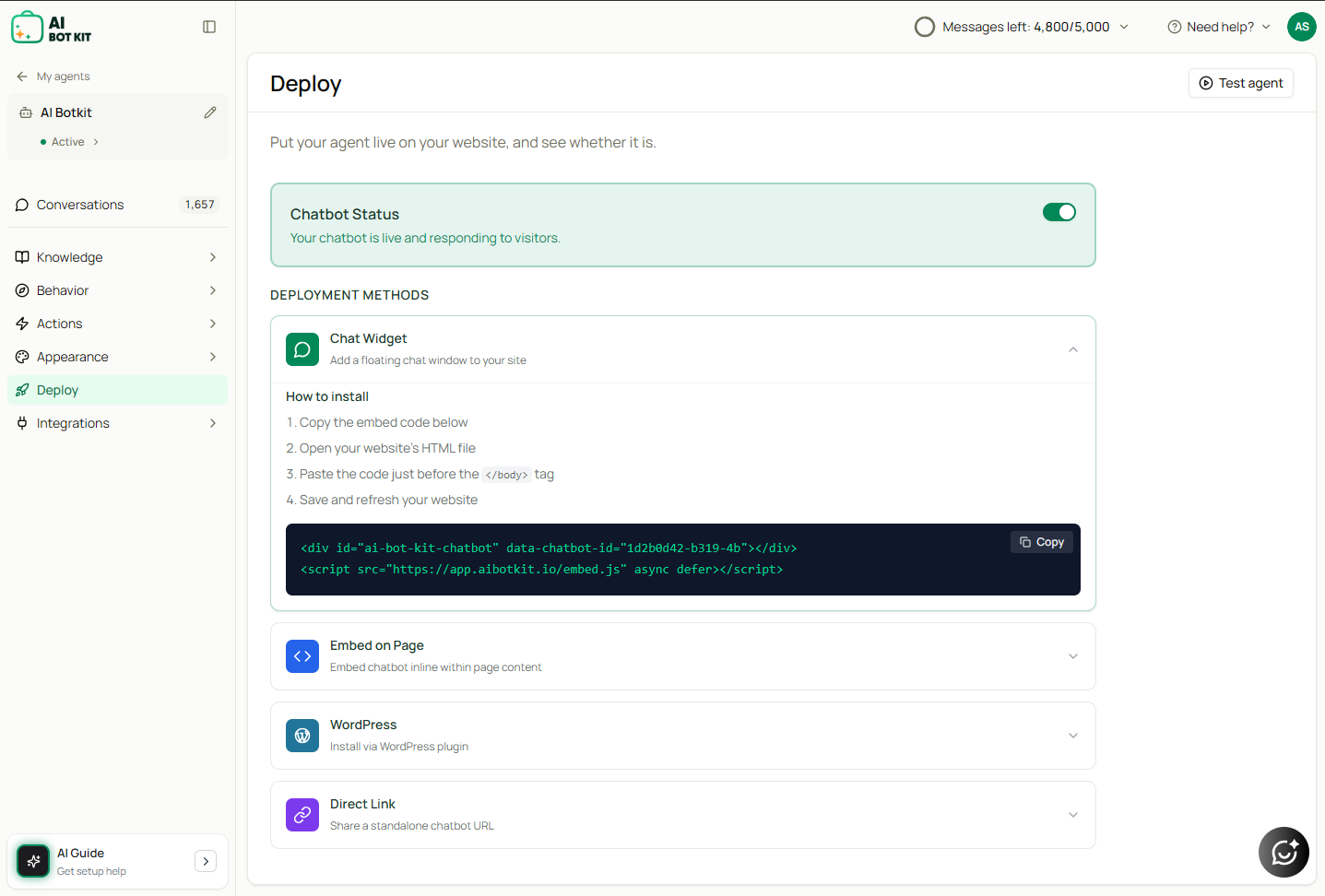
Chatbot Status
The toggle at the top turns your agent on or off for real visitors.
- On — your chatbot is live and responding to visitors.
- Off — the widget won't respond, even if the embed code is already on your site.
Activating is not the same as deploying. The toggle makes your agent allowed to respond; the embed code is what actually puts it on your site. You need both. You can also see the current status at any time from the Active / Inactive chip under your agent's name in the left sidebar.
Test before you go live
Click Test agent in the top right to open a preview panel beside the screen you're on. Ask it the questions your customers actually ask, and check the answers are right before real visitors see them.
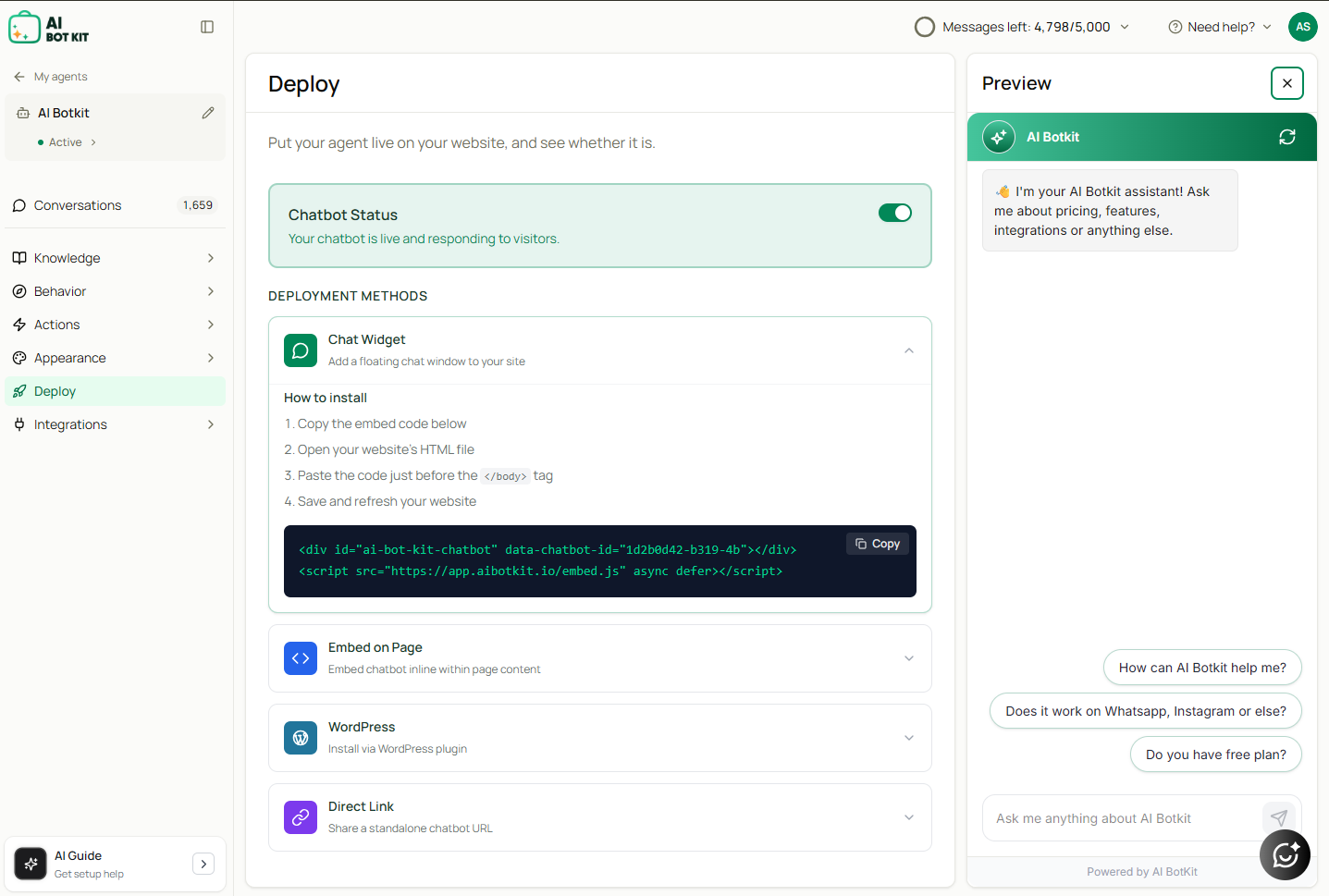
The preview is a real conversation with your agent, so it uses your message credits and shows up in Conversations like any other chat.
Deployment methods
Once your agent is active, you have four deployment methods:
-
Chat Widget\ Adds a floating chat window to your site. Copy the embed code and paste it just before the
</body>tag in your website's HTML, then save and refresh. -
Embed on Page\ Embeds the chatbot inline within your page content, for a seamless, integrated look.
-
WordPress\ Install via the AI BotKit WordPress plugin. The plugin connects your site and handles embedding automatically — see WordPress Plugin Guide.
-
Direct Link\ Share a standalone chatbot URL with your customers. They can chat without visiting your website at all.
Click any method to expand it for step-by-step instructions and its own copy button.
Related Topics
- Getting Your Embed Code
- Chatbot Not Showing — if the widget doesn't appear after installing