Add-ons
Learn how to buy extra message credits and storage on top of your plan — one-time top-ups on Free Full Access, and add-ons on paid plans.
Add-ons let you add message credits or storage without moving to a bigger plan. If you're happy with your plan but sometimes need more, an add-on is the simple fix.
There are two kinds, depending on your plan:
| Your plan | What you buy | How it works |
|---|---|---|
| Free Full Access | One-time credit top-ups | A single purchase added straight to your balance. Not a subscription. Buy again any time. |
| Essential / Business | Add-ons | Extra message credits or extra storage, billed monthly or yearly. |
Free plan users: You don't need to upgrade to get more credits — use the one-time credit top-ups below. Add-ons are for paid plans only.
Free Plan: One-Time Message Top-Ups
On the Free Full Access plan, your 100 credits are a one-time allowance that never resets. When you run low, buy a one-time top-up — no subscription, and you can buy again whenever you need to.
| Top-up | Price |
|---|---|
| 50 credits | $9 (one time) |
| 100 credits | $18 (one time) |
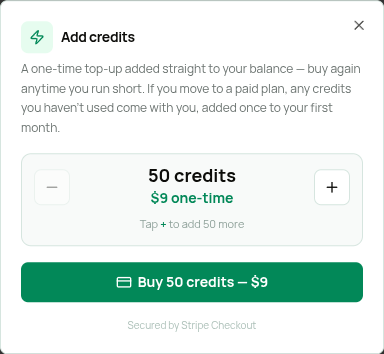
How to buy a top-up:
- Go to Settings → Plans & Billing in your dashboard.
- In the Current Plan box, click Add credits. (You'll also find Add credits in the top header.)
- Use + / − to choose 50 credits ($9) or 100 credits ($18).
- Click Buy 50 credits — $9 (or Buy 100 credits — $18) → you'll go to a secure Stripe Checkout page.
- (Optional) Enter a coupon code in the Add promotion code field to apply a discount.
- Pay by card. Your credits are added automatically when you return to the dashboard.
Coupon codes work on top-ups. Add your code in the Add promotion code box on the Stripe Checkout page before paying.
For full details of the free plan, see Free Full Access Plan.
Add-ons (Paid Plans)
On Essential and Business, you can add extra capacity at any time, monthly or yearly:
| Add-on | What It Gives You | Per Pack |
|---|---|---|
| Extra message credits | More message credits every month. Use them with any AI model. | +1,000 credits |
| Extra storage | More storage for pages, files and Q&A across your chatbots | +5M characters |
Example
You're on the Essential plan (2,000 credits a month, 20M characters of storage). You expect a busy season and need about 3,500 credits a month. Instead of upgrading, you add 2 packs of Extra message credits (+2,000 credits), giving you 4,000 credits a month.
How to Buy an Add-on
- Log into your AI Bot Kit dashboard.
- In the left sidebar, go to Settings, then open the Plans & Billing tab.
- Use the Monthly / Yearly switch near the top of the page to choose how the add-on is billed.
- Scroll to the Add-ons cards.
- On Extra message credits or Extra storage, click Get add-on.
- The first time, you'll go to a secure Stripe Checkout page to pay. If you already have that add-on, you'll be asked to confirm, and one more pack is added to it.
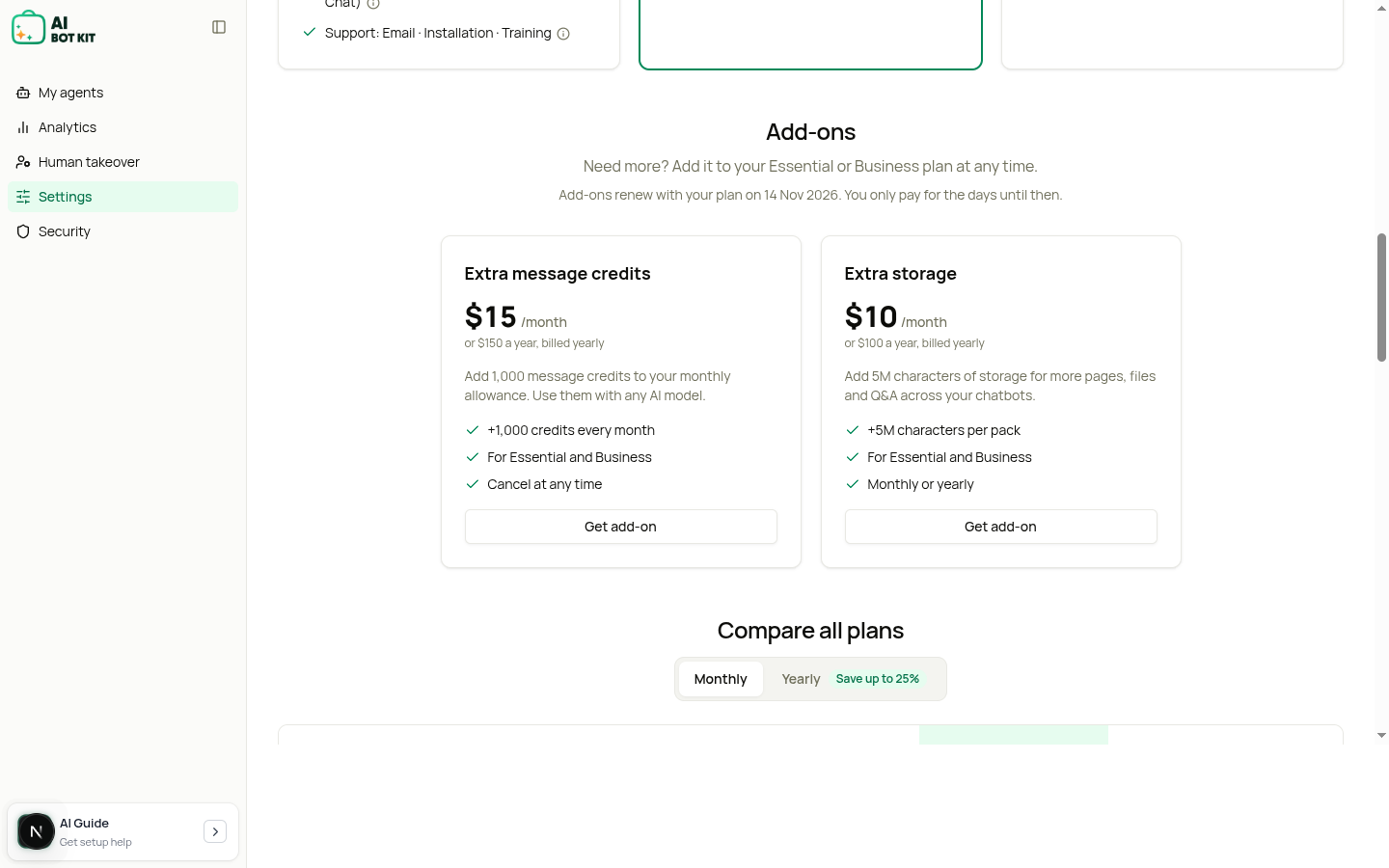
On the Free Full Access plan, the add-on cards show See plans instead of Get add-on — add-ons need an Essential or Business plan.
Pricing
Each add-on card shows its price. It follows the page's Monthly / Yearly switch:
| Add-on | Monthly | Yearly |
|---|---|---|
| Extra message credits (per 1,000 credits a month) | $15/month | $150/year |
| Extra storage (per 5M characters) | $10/month | $100/year |
Each click on Get add-on adds one pack. Need more? Click it again.
How Billing Works
The Plans & Billing page tells you, just above the add-on cards, exactly how your add-on will be billed:
- Same billing as your plan (for example, a monthly add-on on a monthly plan) — the add-on renews with your plan, and you only pay for the days until your plan's next renewal date.
- Different billing from your plan (for example, a yearly add-on on a monthly plan) — the add-on is billed separately: the full price today, then every month or year from the day you add it.
Managing Your Add-ons
View Active Add-ons
On the Plans & Billing page, in the Add-ons section, you'll see:
- Your active add-on bonuses (extra credits a month, extra storage)
- Each active add-on, how many packs you have, and when it renews or ends
Cancel an Add-on
- Go to Settings → Plans & Billing and scroll to Add-ons.
- Find the active add-on you want to remove.
- Click the ✕ button next to it.
- Click Cancel Add-on to confirm.
If you cancel your plan, your add-ons stop renewing too. Resuming a cancelled plan doesn't bring its add-ons back — add them again if you still need them.
Tips for Using Add-ons
- Use add-ons for busy periods. If you only need extra capacity for a while, an add-on can cost less than upgrading your plan.
- Monitor your usage. Check your credits and storage on the Plans & Billing page to decide if an add-on makes sense.
- Combine add-ons. You can have extra credits and extra storage at the same time.
Troubleshooting
I don't see a "Get add-on" button
- Add-ons are for Essential and Business plans. On the Free Full Access plan, use the one-time Add credits top-up in your Current Plan box instead (see above).
- If your plan is cancelled, you can't add new add-ons.
My add-on purchase failed
- Make sure your payment card is up to date.
- Try again in a few minutes. If it keeps failing, contact support.
How Add-on Credits Work
Add-on credits work exactly like your plan's own credits — they're added to your monthly allowance. If your plan includes 2,000 credits a month and you add 2 packs of Extra message credits (+2,000), you have 4,000 credits a month. How many credits a reply uses depends on your chatbot's AI model — see Message Credits & AI Models.
Related Topics
- Message Credits & AI Models — How credits and AI models work
- Upgrading to Paid Plans — Upgrade your main plan
- Where to Find Your Usage — Monitor credits and storage
- Monthly vs Yearly Pricing — Save with yearly billing