APPEARANCE: Interface
The Interface section controls how your chatbot communicates with visitors.
Open your agent, then go to Appearance → Interface in the left sidebar.
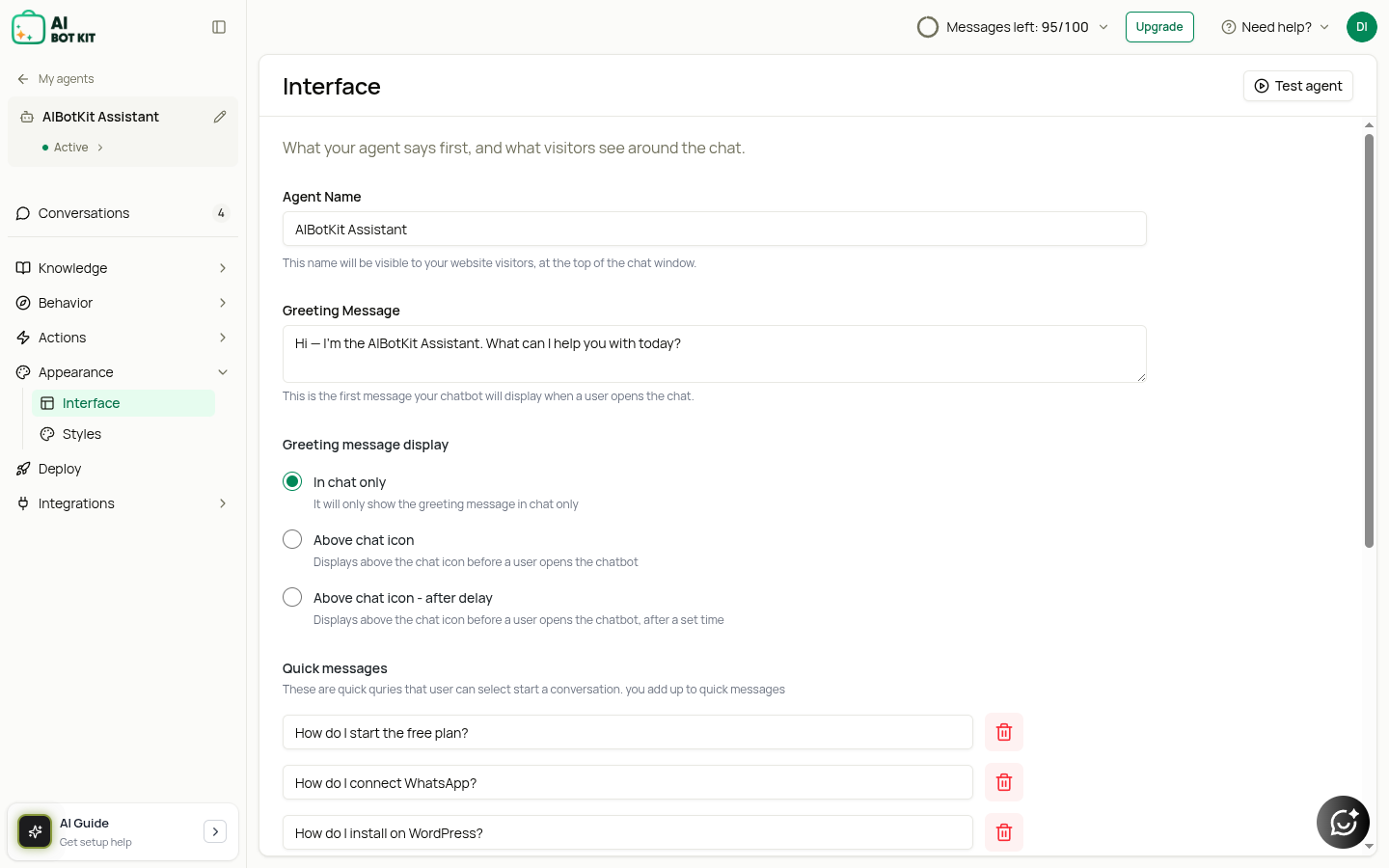
Agent Name: The name your visitors see at the top of the chat window. Give it a name that fits your brand — it's the first thing people read.
The agent name used to live on a separate General screen, which has been removed. You can also rename an agent from the identity block at the top of the left sidebar, using the pencil icon.
Greeting Message: This is the first message shown when someone opens the chatbot. Example:\ "Hello! 👋 How can I help you today?"
Greeting Message Display: Customize where the greeting message should be displayed. There are three options:
- In Chat Only\ The message is shown only inside the chatbot, after it has been opened.
- Above Chat Icon\ The message appears above the chatbot icon (before opening the chatbot) and is also visible inside the chatbot.
- Above Chat Icon (Delayed)\ The message appears above the chatbot icon after a delay. You can set the delay time (in minutes), and the message will pop up accordingly.
-
Quick Messages : Add predefined question snippets that users can click on, so they don't have to type their queries manually.
-
Fallback Message: This appears when the chatbot doesn't understand a question. Example:\ "I don't have an answer for that yet. Can you rephrase your question?"
-
Follow-up Message: This pop-up message appears when a user has been inactive for more than 1 minute. You can fully customize the text to suit your bot's tone and context.
-
Input Placeholder: This sets the default placeholder value in the message box.
-
Footer Text: Customize how your footer appears.\ Update the footer message to reflect your industry.\ Example : if you're a doctor, you could write: "These are AI-generated responses provided for assistance. Please review important details carefully before relying on them."\ Note: Custom footer text is available on every plan — Free Full Access, Essential, Business and Enterprise.
These settings ensure your bot always responds — even if it doesn't know the exact answer — and keeps the conversation flowing.