Leads
Leads Table
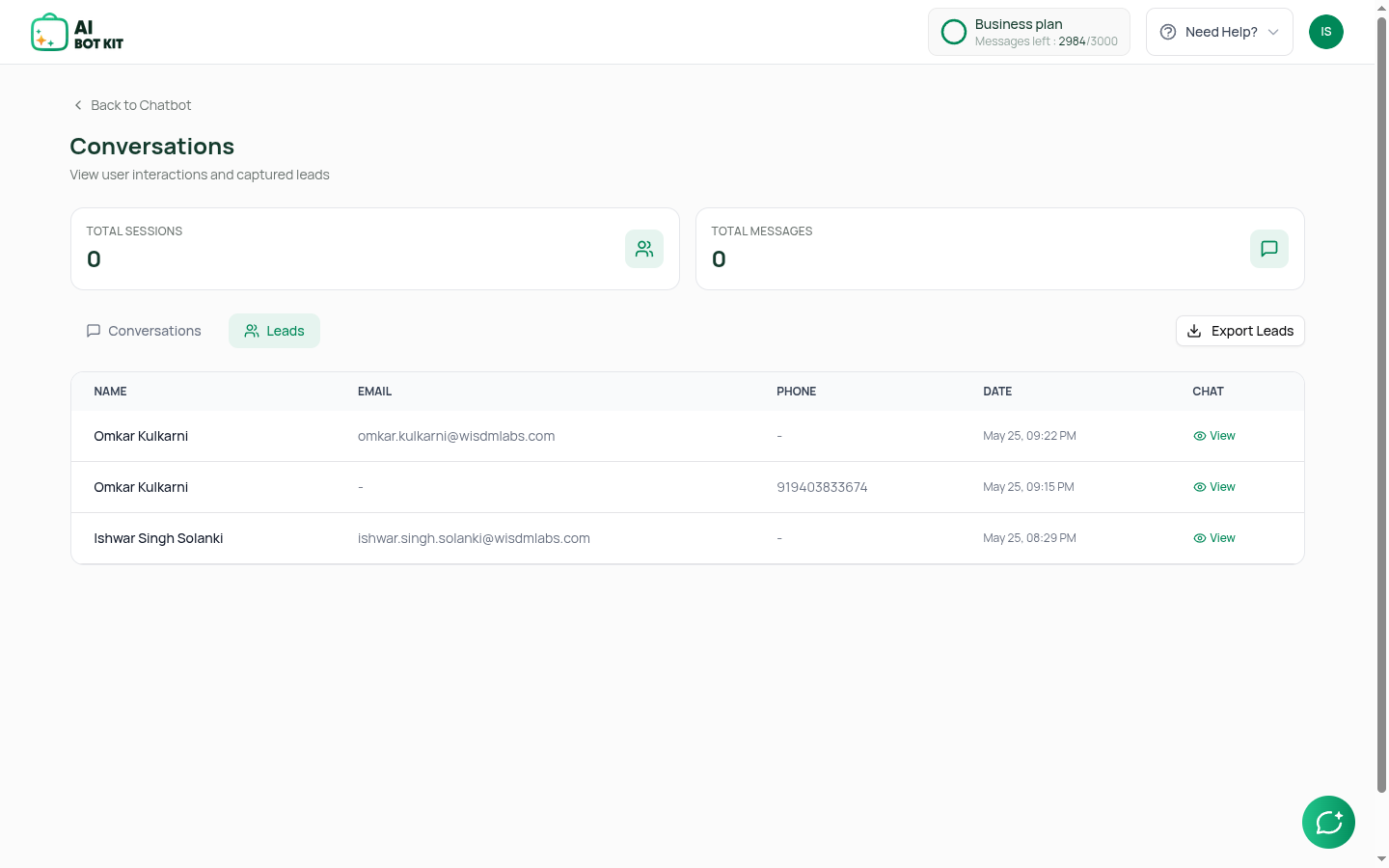
The Leads Table is a dedicated view in your dashboard that shows all contact form submissions separately from regular conversations. This makes it easy to focus on potential customers and manage your leads effectively.
How to Access the Leads Table
- Open any chatbot in your dashboard.
- Click Conversations in the left sidebar.
- You'll see three tabs at the top: Conversations, Leads, and Export
- Click on the Leads tab to view all your leads.
What You'll See
The Leads table displays:
- Name: The lead's name
- Email: The lead's email address
- Phone: The lead's phone number (if provided)
- Date: When the lead was collected
- Chat: A button to view the full conversation that led to this lead
Using the Leads Table
Viewing Leads:
- All leads are displayed in a clean, organized table
- Leads are paginated, showing multiple rows per page
Viewing the Full Conversation:
- Click the "View" button next to any lead
- This takes you to the complete conversation history
- See exactly what the user asked and how your chatbot responded
Exporting Leads:
- Click the Export Leads button at the top right
- This exports all your leads to an Excel file
- Perfect for importing into your CRM or email marketing tools
Benefits
- Focus on Sales: Quickly identify and prioritize potential customers
- Better Organization: Separate leads from general conversations
- Easy Export: Download leads for use in other tools
- Complete Context: See the full conversation that generated each lead
Best Practices
- Review your leads regularly to ensure timely follow-up
- Export leads weekly or monthly for your sales team
- Use the conversation history to personalize your outreach
- Track which chatbot interactions are generating the most leads